

Good evening!
This guide is for Windows users looking to keep their server and/or database up to date with any changes.
If you followed most of our guides for the installation process, then you should already have a server and database folder that was cloned from GitHub. If you do not, then you may want to refer back to this post
Updating The Server
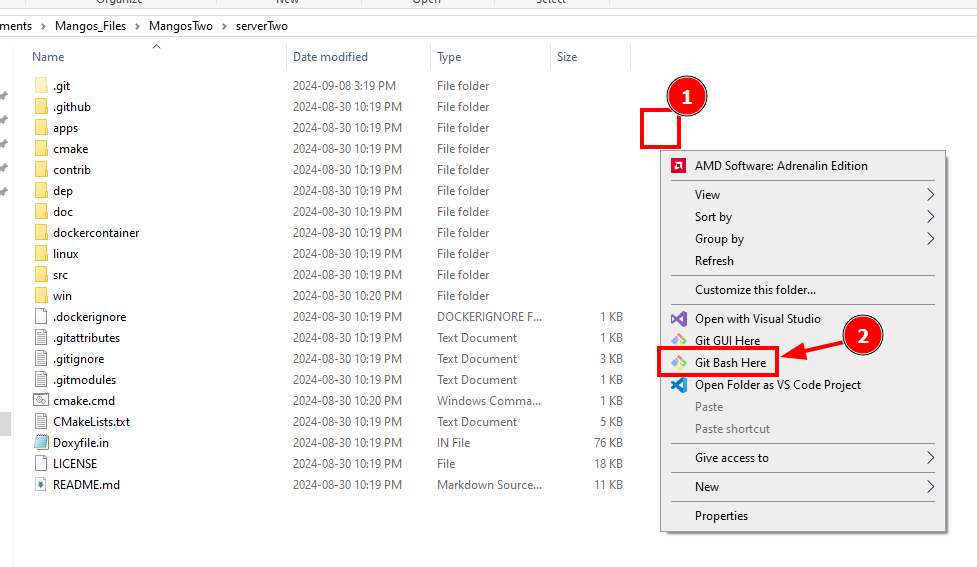
1) Open your server folder. Right click anywhere (#1), when the context menu opens up, click "Git Bash Here" (#2).
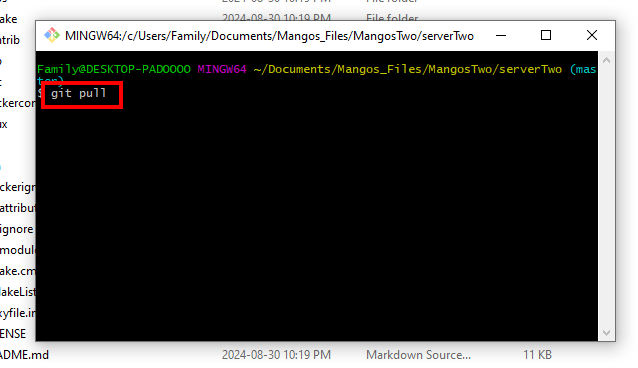
2) Type "git pull" into your Git Bash window and press Enter.
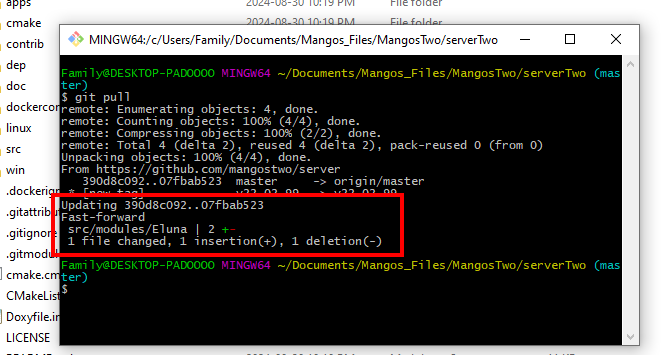
You can see that I pulled an update that had 1 insertion and 1 deletion. You may have more depending on when the last time you cloned/pulled your git.
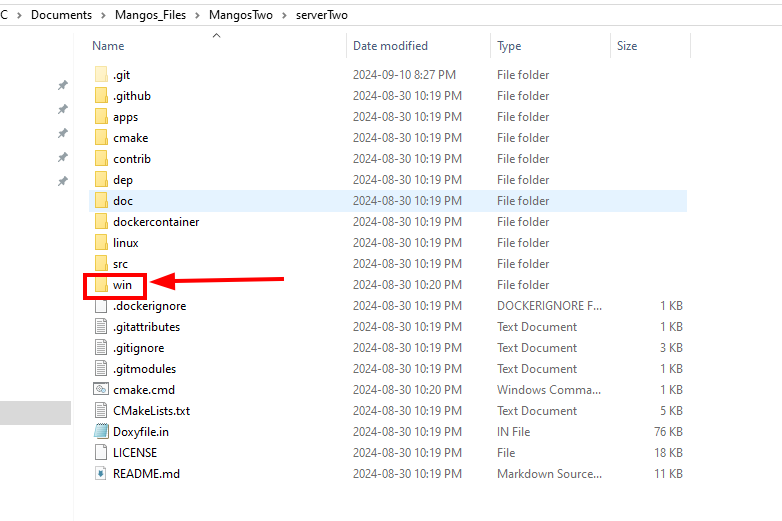
3) Open up the "win" folder.
4) Start up the "MaNGOS_EasyBuild.exe"
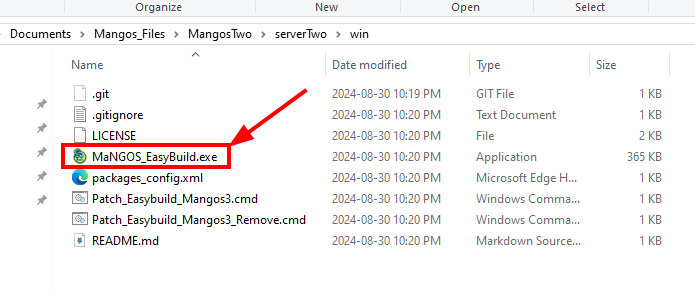
5) Note, depending on your version of Visual Studio this may or may not be necessary:
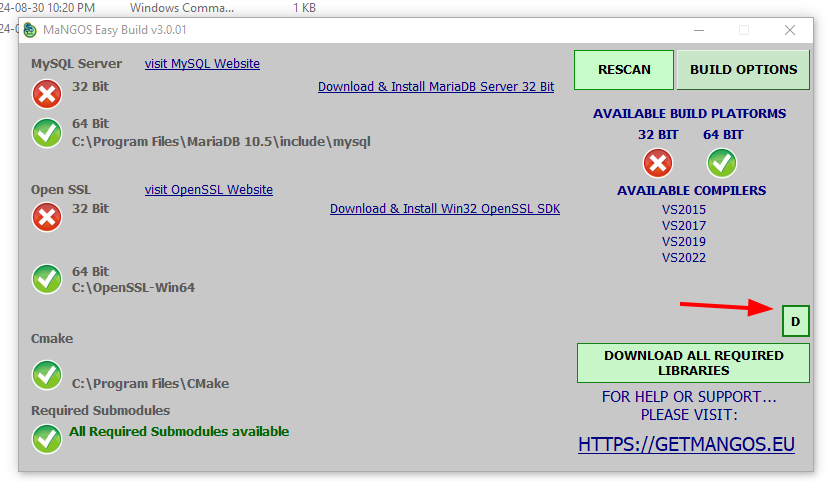
I press the "D" button, and then check off "VS 2022" and then "UPDATE".
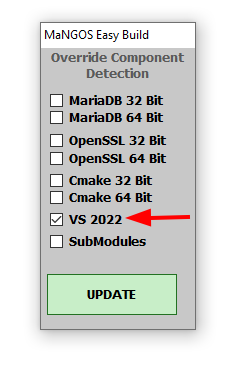
6) We'll open up "BUILD OPTIONS".
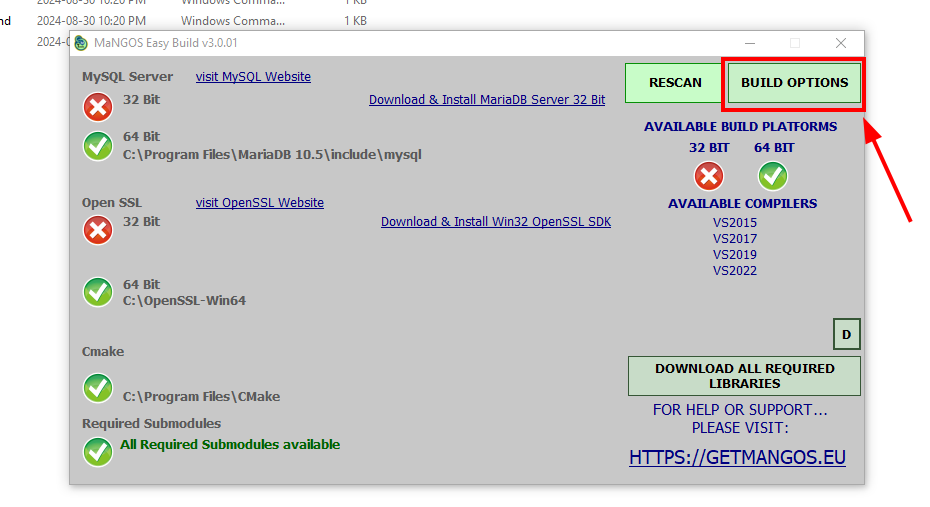
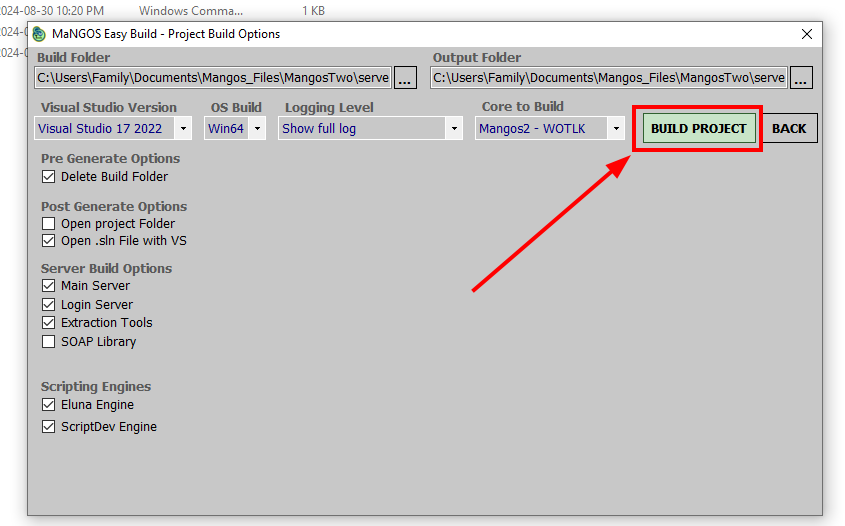
7) Select anything you need on the left - in my case, I usually leave these as defaulted. Press "BUILD PROJECT".
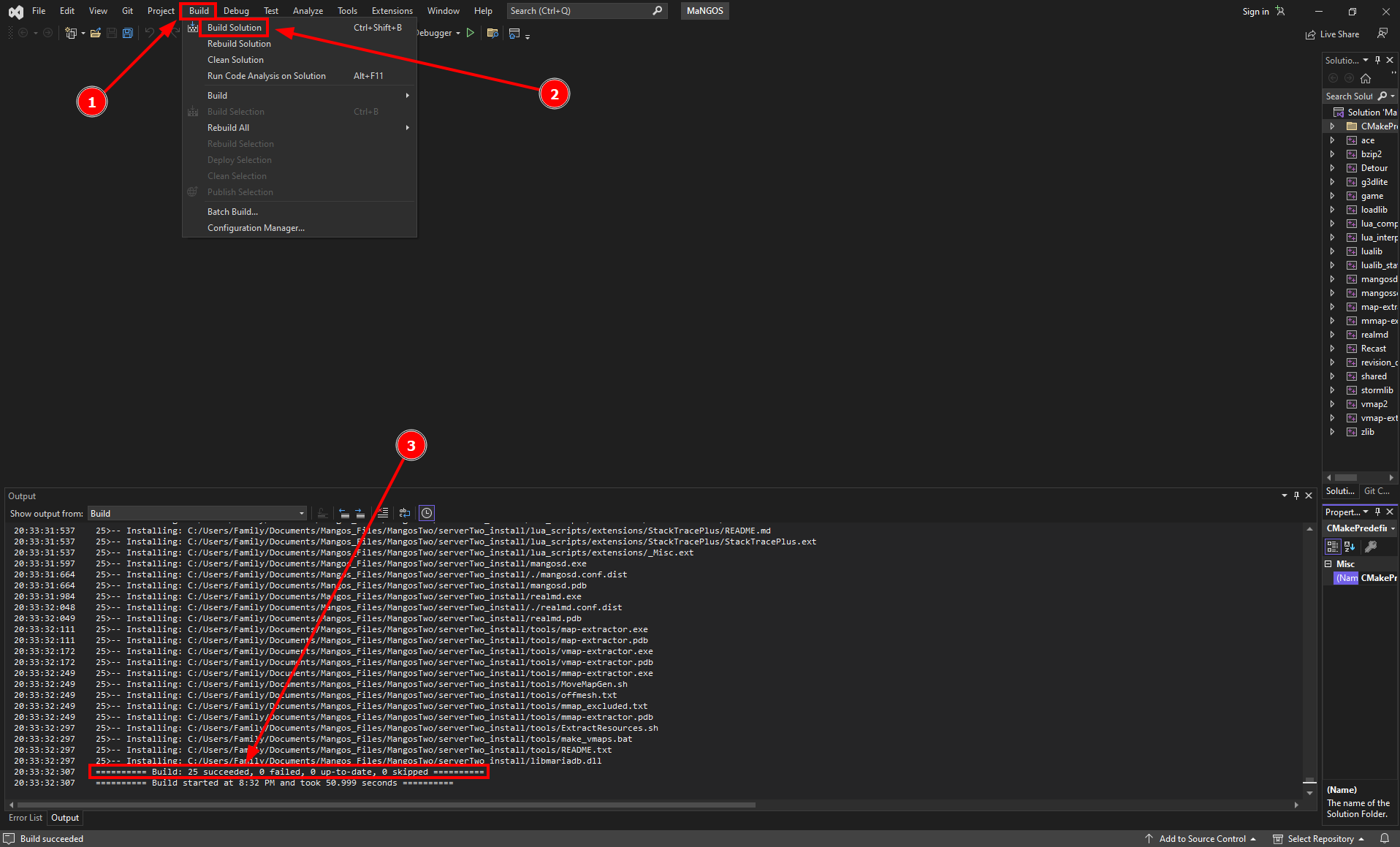
8) In Visual Studio 2022, I click the "Build" menu at the top (#1), Press "Build Solution" (#2). After the build is complete,. you should get a message to say that everything succeeded (#3).
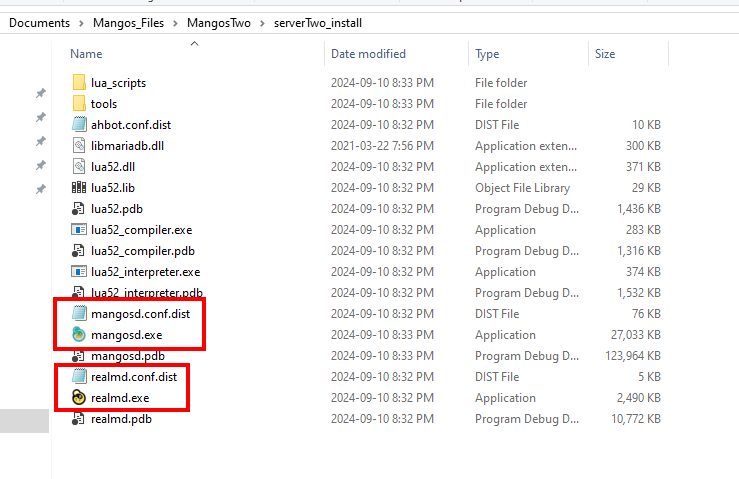
9) You can close Visual Studio 2022 and the EasyBuild program. Navigate to your "*_install" directory. There, you should find your "mangosd.exe" and "realmd.exe" as well as your "mangos.conf.dist" and "realmd.conf.dist". The conf.dist files don't need to be replaced UNLESS there were changes to the server in the update that require a new configuration file -- you'll see this when you start up your server and it fails because of out of date configuration files.
Take your mangosd.exe and realmd.exe files and place them in the folder that you normally store your executables -- most people put them in different places, so I can't give you a specific answer. But I would assume you know, since you start your server up somehow. 
And that should be it for updating your server!
Updating The Database
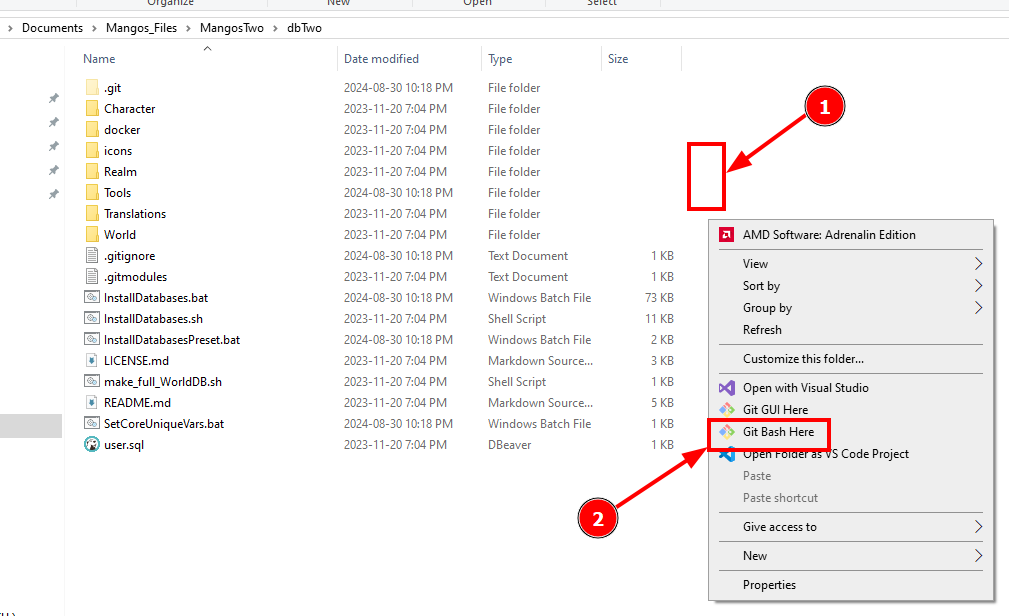
1) Open your database folder. Right click anywhere (#1), when the context menu opens up, click "Git Bash Here" (#2).
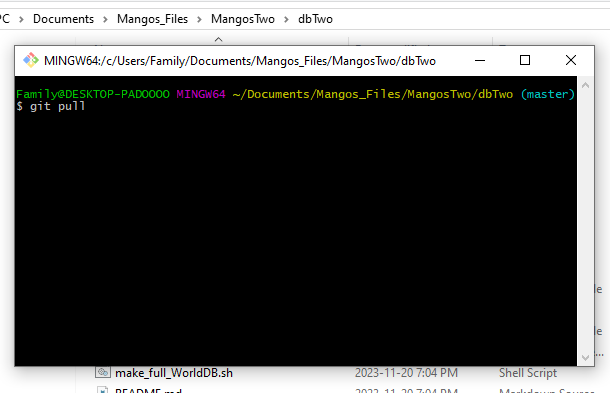
2) Type "git pull" into your Git Bash window and press Enter.
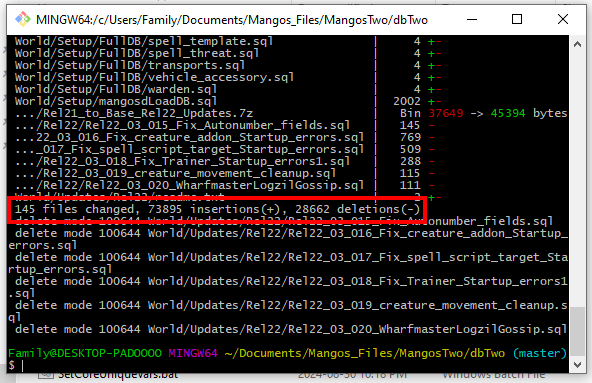
You can see that I pulled an update that had 73,895 insertions and 28,662 deletion. You may have more or less depending on when the last time you cloned/pulled your git.
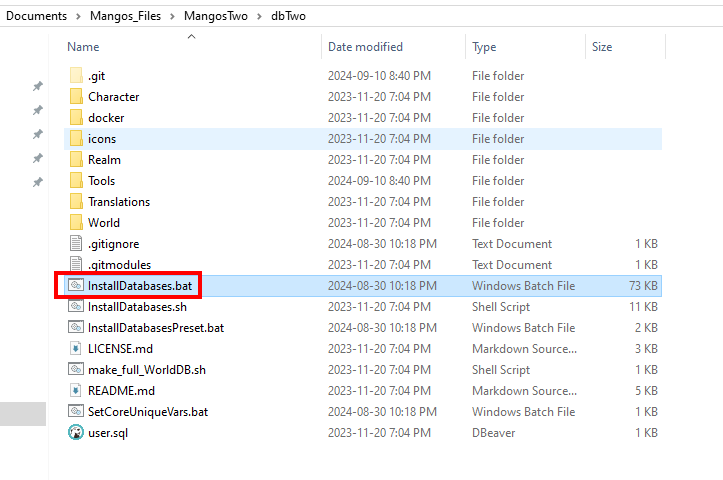
3) Double click the "InstallDatabases.bat" file to open up a guided script for database updates.
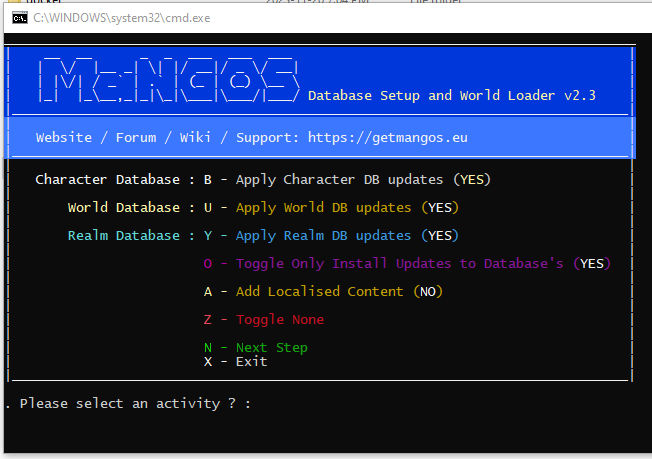
4) Type "O" (without the quotations) to "Toggle Only Install Updates to Database's", press Enter.
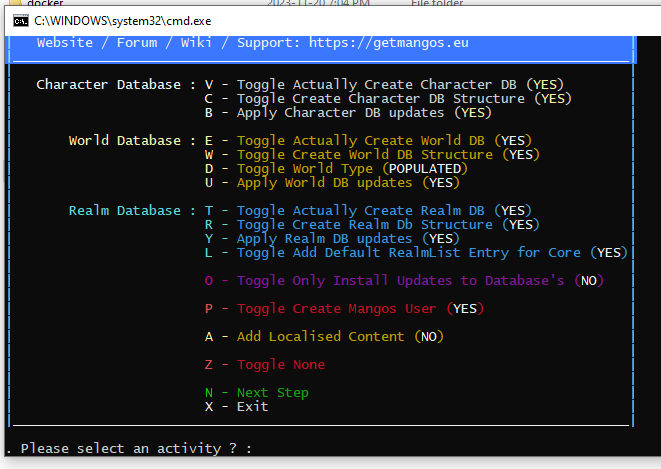
It will now show you a condensed version with a few options now. Since I'm happy with it applying updates to Character, World, and Realm databases, I'm going to type "N" for "Next Step" and press Enter.
If for some reason you did NOT want it to update a specific database, you can toggle those options to NO.
5) Fill in the questions asked of you for your database connections. You'll see in my case, almost everything was the same as the default answers, with the exception of my MySQL user name being "mangos" instead of "root". You may have a different username, password, database names, etc. that may be unique to your setup.
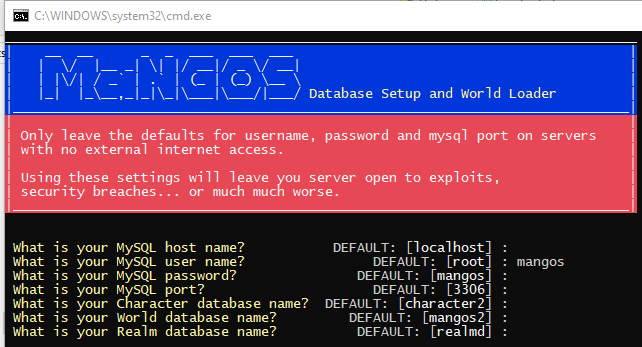
After you press Enter for the Realm database, it will apply your updates.
If everything goes smoothly - then you should see something that looks like this:
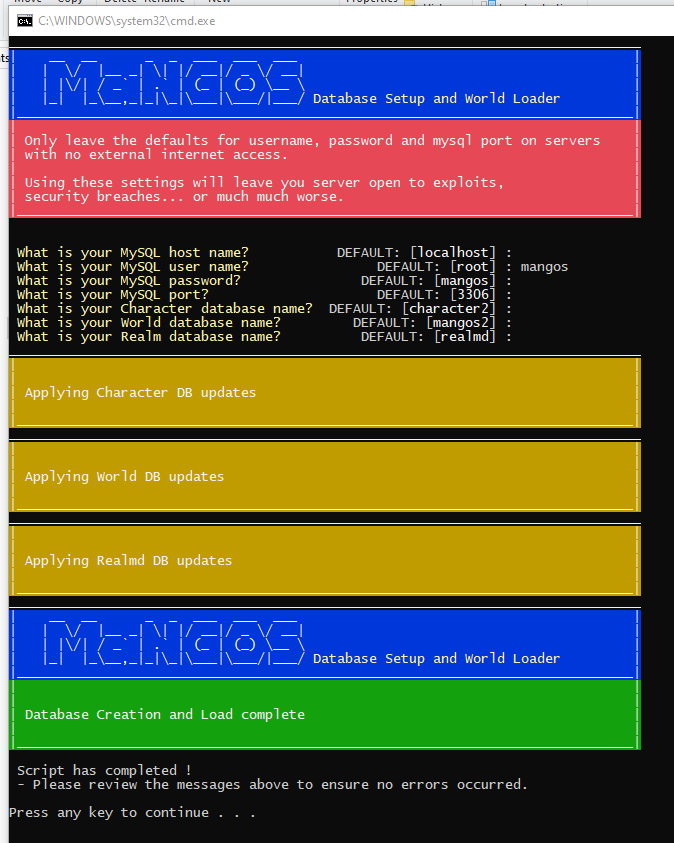
And that's it! You've now updated your server and database! 
If you have any questions don't hesitate to reach out here or on the Discord channel!
All the best,
Fyre
Recommended Comments
Create an account or sign in to comment
You need to be a member in order to leave a comment
Create an account
Sign up for a new account in our community. It's easy!
Register a new accountSign in
Already have an account? Sign in here.
Sign In Now