


Jump to content
  • We are looking for staff for the Wiki area!
    If interested please
    click here and select "Documentation Team"

  • Message added by madmax,

    This is currently the recommended way to install MaNGOS.

    Installing Mangos on Windows

    There are multiple ways of installing MaNGOS, this method will be using EasyBuild (a MaNGOS written tool) to simplify the process.

    1) Although there are several pieces of third party software that are required to be installed, only two need to be installed prior to running Easybuild.

    Git (See HERE for the Install Guide) and
    Visual Studio (See HERE got the Install Guide)

    Both need to be installed before continuing. If you don't have them installed... go do that now !!

    The rest of the third party software required for MaNGOS are:

    Cmake (See HERE for the Install Guide). Only 32 or 64 Bit can be installed, not both.
    OpenSSL (See HERE for the Install guide). Both 32Bit and 64Bit can be installed together. You need the full rather than the lightweight version.
    MySQL (See HERE for the Install guide). Only 32 or 64 Bit can be installed, not both.

    2) create a folder to hold all the source files i.e. Mangos_Files

    3) Select the folder created above in explorer and right click on it, then select 'Git Bash here'

    4) Clone the MaNGOS server and database GitHub repositories into folders in this folder (See HERE for a guide for cloning the repos)

    5) Using explorer navigate to the server folder created above.

    6) Navigate into the Win folder and double-click EasyBuild(If building MaNGOS three, run 'Patch_Easybuild_Mangos3' as the administrator before running EasyBuild).

    7) Click CHECK NOW and let EasyBuild check for the MaNGOS dependencies. If your missing one, download and install it.

    😎 Once MaNGOS finds everything it needs to build, click BUILD OPTIONS. If you want to change anything such as whether to build the extractions tools or not. The defaults are fine so we click on BUILD PROJECT. This will take a while so be patient.

    9) If you look in the _install folder, all the require files you need on the server are there.

    10) The contents of the tools folder need to be copied to where the wow client is located ready for the extraction process (see below).

    11) Copy the remaining folder and files from this folder to your server folder

    12) Extract the client data using extractresources.sh (See HERE to a guide to extracting the client data)

    13) Now it's time to set up the database.

    14) Select the folder created above in step 2 and then select dbzero(for MangosZero).

    15) Double-click on InstallDatabases.bat

    16) The initial settings as defaulted for the typical settings required for a new server setup but you might not want to create a new user right now so you press P then press N to continue.

    17) The next few prompts are ask you to supply some key information to connect to your MySQL server, the text in square brackets [] are the default values if nothing is typed.

          Some of the settings are:
          Server Name / Address
          Username
          Password
          Port
          Character Database Name
          World Database Name
          Realm Database Name

    18) The script will then proceed to populate all the databases and finish up looking like the following
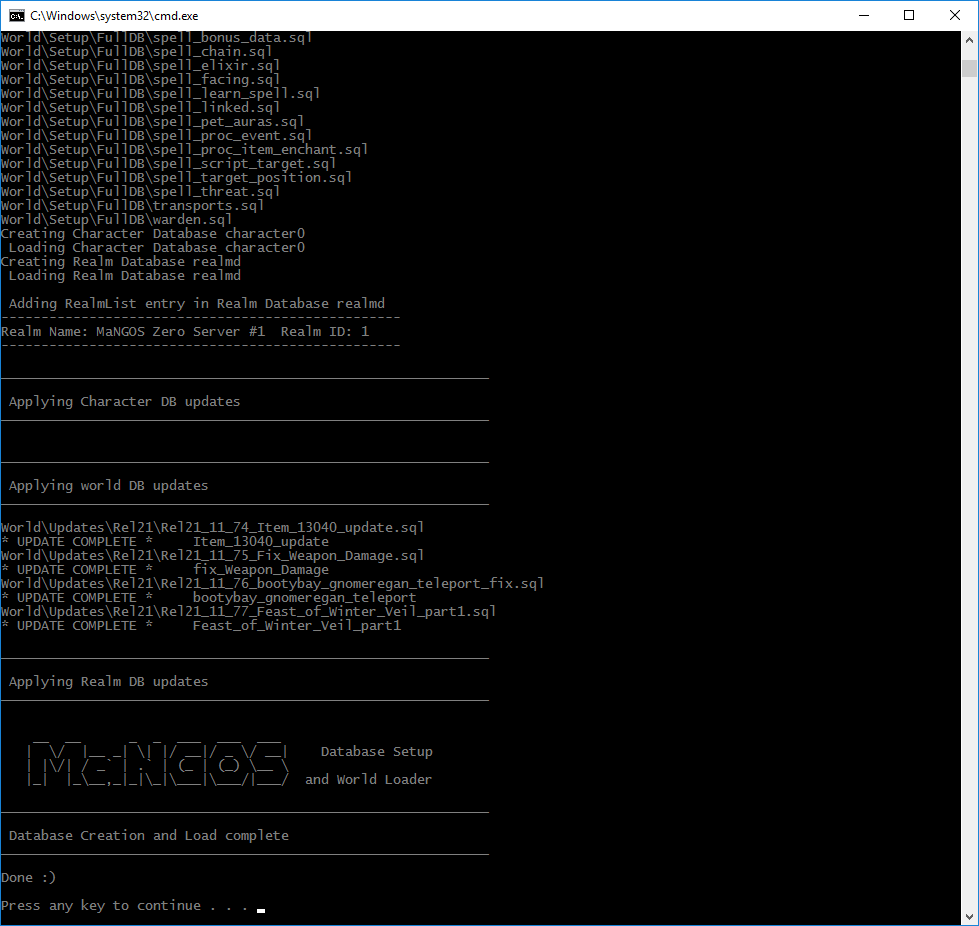
    dbload.png

    19) At this point the database is now fully loaded.

    20) On the server where you copied the files earlier, rename the 4 .conf.dist files as .conf

    21) Now it's time to start configuring the server, first stop is adjusting the settings in the .conf files as described HERE

    22) Now we need to configure the Realm Database to use the correct IP addresses as described HERE

    23) Now the moment of truth...

    24) Double click realmd.exe from the server folder, you should see a screen like:
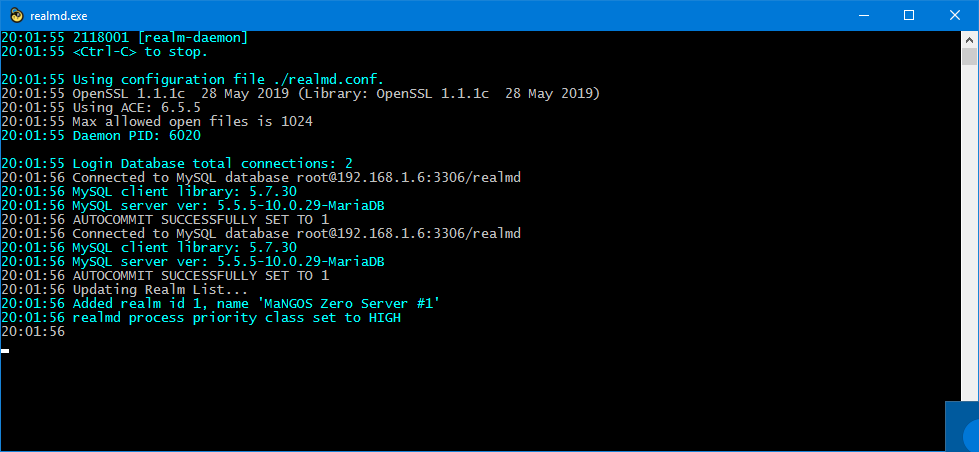
    image.png

    25) Double click mangosd.exe from the server folder, you should see lots of messages like:
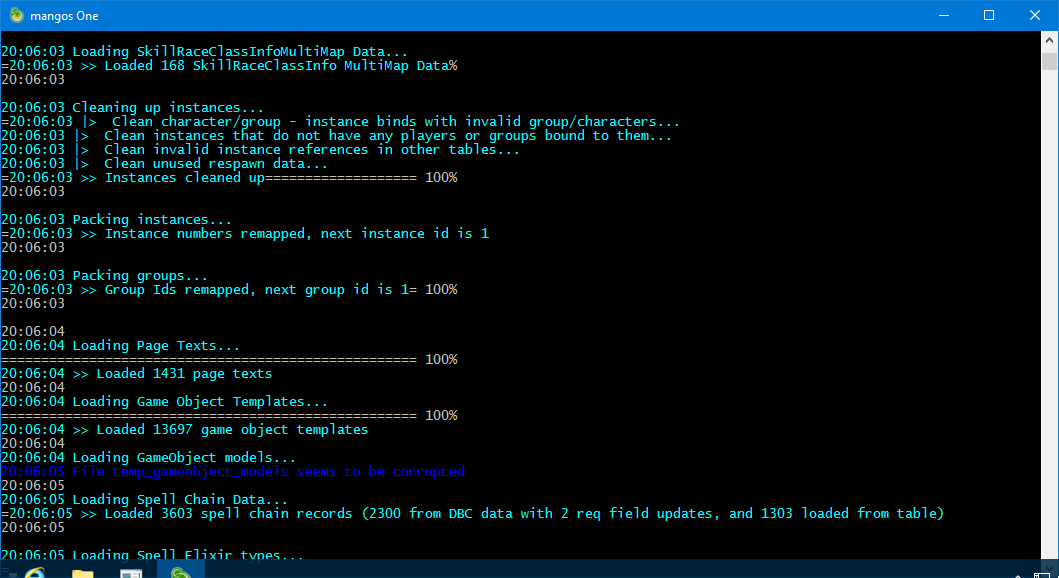
    image.png

    26) You now need to create an account to allow you to login to your server from the client:

    Type:

    ACCOUNT CREATE username password expansion

    (Where expansion is one of the following: 0 = Classic, 1 = TBC, 2 = WOTLK, 3 = Cataclysm, 4 = MOP, 5 = WOD, 6 = Legion)
    - This is also the max allowed expansion this account can use!

    NOTE: for mangos Zero, omit the expansion parameter.

    27) and now for the the final step.....

    28) One of the client files (realmlist.wtf) will need to be adjusted to point to your server, a description of how to do this is HERE

    29) Start the your client(wow.exe),do NOT use the launcher, enter the account information created above and enjoy.



    User Feedback

    Recommended Comments

    MrGizzmo

    Posted

    the _install folder is empty, and the easybuild build project thing went very quick.

    it opens visual studio, but I don't know what to do there.

    d.png

    • Like 2
    antz

    Posted

    navigate to the folder

    D:/Downloads/Mangos_Files/serverZero_build

    and then open the file

    MANGOS.sln

    with Visual Studio, then build the solution

    • Like 3
    antz

    Posted

    @liuyang2708 mysql libraries need to be installed rather than just the service to build mangos. But i'm going to assume you have done this.

    With this release of easybuild I added some bypass options.
    1) On the main screen of Easybuild, click the D button
    image.png

    2) Click the MariaDB 32/64 installation you have (mysql is deprecated, but this will bypass it)

    3) Click 'UPDATE'

    4) The 'Build Options' Button should appear

    5) If you get errors when attempting to build, then it's cmake can't find you mysql either.


    • Like 1
    Conner Reid

    Posted (edited)

    @antz
    Thank you for your response. Please see attached. Example is (I believe) using all defaults with no new profile created. 

    The ERROR 1045 occurs on every line from beginning to end.

    1.JPG

    2.JPG

    3.JPG

    Edited by Conner Reid
    Einar Hrafn

    Posted

    Hello, Im new on making server, and have 1 question please,

    i want to start learning and building my own server on mangos version, at the start of course nothing special but with time i want to add some special futures in the server and make it unique as i always wanted,

    and my question is when i do that things will i be able to move that server on different pc and windows version? currently i want to start learning and building on my old pc that runs windows 7 32 bit and later when i get more familiar with all the things move to normal windows 10 64 bit and if i decide to put server online on windows server

    Kronus

    Posted

    to use intalldatabases.bat  i had to install mariadb  with the  root password as  mangos  also to get the installdatabases.bat to update the  databases  i had to run the installdatabases.bat.   in the mariadb  command prompt.  changing to the  database directory.

    i edited the installdatabases.bat  file.

    @ECHO OFF

    rem -- Change the values below to match your server --
    set mysql=C:\"Program Files\MariaDB 11.4\bin"\

    was geting error can't find plugin directory
     

    burnx

    Posted (edited)

    Can confirm this guide works as of 21.10.2025 — thank you all for the amazing work!

    Server build: Microsoft Windows 10 IoT Enterprise LTSC (Version 10.0.19044, Build 19044)

    A few notes from my setup experience:

    1. As others have mentioned, when building the project with EasyBuild, it didn’t actually compile and build all the files that should have been in the "serverZero_install" folder. I had to open the "MaNGOS.sln" solution in Visual Studio Community and build it manually there. Everything compiled successfully on the first try.

    2. All maps and data generated in Step 12 must be placed in a "data" subfolder inside your server folder (e.g., server-folder/data). Otherwise, mangosd.exe will fail to find the required data.

    3. I had to set the OPENSSL_MODULES environment variable before running the InstallDatabases bash script.  
       On Windows: press Ctrl + R, type sysdm.cpl, go to Advanced → Environment Variables, and add a new System variable with Name=OPENSSL_MODULES and Value=PATH_TO_YOUR_OPENSSL_BIN (e.g. C:\OpenSSL-Win64\bin)

    Edited by burnx
    • Like 1
    AndrewMZ

    Posted (edited)

    Hey folks. I want to provide some feedback that somebody might find valuable.
    I logged some problems that I encountered as an inexperienced in such activities user.
    OS: windows 11, Hardware: Acer nitro 5 gaming laptop
    Date of installing: 4 November 2025.

    1. After launching "MaNGOS_EasyBuild.exe" and clicking "Build project" I had visual studio window popping up. I used Visual studio 17 2022. On the last stages of building an error "ACCESS DENIED" showed up repeatedly when trying to access a folder (I don't remeber what folder) . Turned out that it was because the building process was setup with "debugging" option next to the green arrow. The directory that caused the problem is irrelevant for building so the error can be safely ignored

    2. Step 9. I sincerely was searching for the "_install" folder instead of "serverZero_install"

    3. When running "ExtractResources.sh" (have to choose git bash CLI) when choosing 4 CPUs the git bash window closes. Probably because it's too many? I chose 1 CPU. The extraction took 7 hours

    4. Step 20. I only found 3 "conf.dist" files (not 4)

    5. Step 12. In server folder (where "realmd.exe" and "mangosd.exe" files are located) I had to put extracted folders "DBC", "Maps", "MMaps" and "VMaps" in data folder for mangosd.exe (or realmd.exe) to work because the error popped up after launching

    6. I'm using Wi-fi connection and when I turn it off the IP address that was assigned to my laptop by my router vanished I could not pass authorization step. So I had to turn wi-fi back on and get my IP back.

    7. I also encountered "OPENSSL_MODULES" environment variable problem but the commentator earlier posted solution


    Other than that I successfully logged into the game and began summoning raid bosses in stromwind of course. Thank you for the guide and for the code! You're awesome!

    Edited by AndrewMZ
    antz

    Posted

    On 12/14/2025 at 6:14 PM, Barette Le Relou said:

    Hi o/

    Please can you help me ? i have a probleme with CMake


    image.png

    image.png

    You need to make sure you have installed the visual studio module for c++ development

    Valmunin

    Posted (edited)

    Step:
    7) Click CHECK NOW and let EasyBuild check for the MaNGOS dependencies. If your missing one, download and install it.
    😎 Once MaNGOS finds everything it needs to build, click BUILD OPTIONS. If you want to change anything such as whether to build the extractions tools or not. 
    The defaults are fine so we click on BUILD PROJECT. 
    This will take a while so be patient.

    I click the "Build Project" and this error returns:
    CMake Error at CMakeList.txt:25 (project):
    Failed to run MSBuild command:
    MSBuild.exe
    to get the value of the VCTargetsPath:
    no such file or directory

    ChatGPT lead me on a 4 hour goose chase... please help. *Frazzled*

    Edited by Valmunin
    This Is Nolt

    Posted

    Thank you for all the hard work you put into this. Got mine set up within the day. 

    I did have a slight hiccup with step 23 where we had to boot Realmd.exe

    I was getting an error upon launch "The code execution cannot proceed because libcrypto-1_1-x64.dll was not found" 

    I made sure the system path existed for OPENSSL. The solution for me was copying OpenSSL-Win64 from program files over the server folder. Then copying libcrypto-1_1-x64.dll from OpenSSL-Win64/bin to the same directory as Realmd.exe. From there it worked. Oddly, only copying  libcrypto-1_1-x64.dll without having the OpenSSL-Win64 directory produced the same error. 

    hinokuro

    Posted

    First of all some mistakes u might make that i did too:
    You cannot have empty passwords for the database, the config files dont support that. 
     After properly extracted the maps dont forget to copy them to the "SOMETHING_install" folder of your server.

    Check that the realmd.conf file is properly pointing to them. By default is pointing to a "data" folder we dont have by default, u can use a "." in that setting to point to root folder and then gameserver will check for the "DBC", "maps","nmaps","vmaps". 

    You might have forgotten to properly set the enviroment variable for either OpenSSL or Mariadb 

    "OPENSSL_MODULES" - "C:\Program Files\OpenSSL-Win64\bin"

    C:\Program Files\MariaDB 11.8\bin


    TIP: if you try to execute either realmd. or mangosd and they instantly disapear, u can execute them directly from the command line to see a small trace of whats wrong with the instalation. 

    PIng me on discord if you need some help 

    Isaac Cattan

    Posted

    I am in the step where im supposed to open realmd.exe but i just get a 0.5s cmd screen and it closes and nothing else happens, i have tried with openssl 3.0.x and the one from the guide the 1.1.1k but still the same, and if i try to open it from cmd it gives me an error with the openssl 3.x or som like that, what should I do?


    Create an account or sign in to comment

    You need to be a member in order to leave a comment

    Create an account

    Sign up for a new account in our community. It's easy!

    Register a new account

    Sign in

    Already have an account? Sign in here.

    Sign In Now

×
×
  • Create New...

Important Information

We have placed cookies on your device to help make this website better. You can adjust your cookie settings, otherwise we'll assume you're okay to continue. Privacy Policy Terms of Use